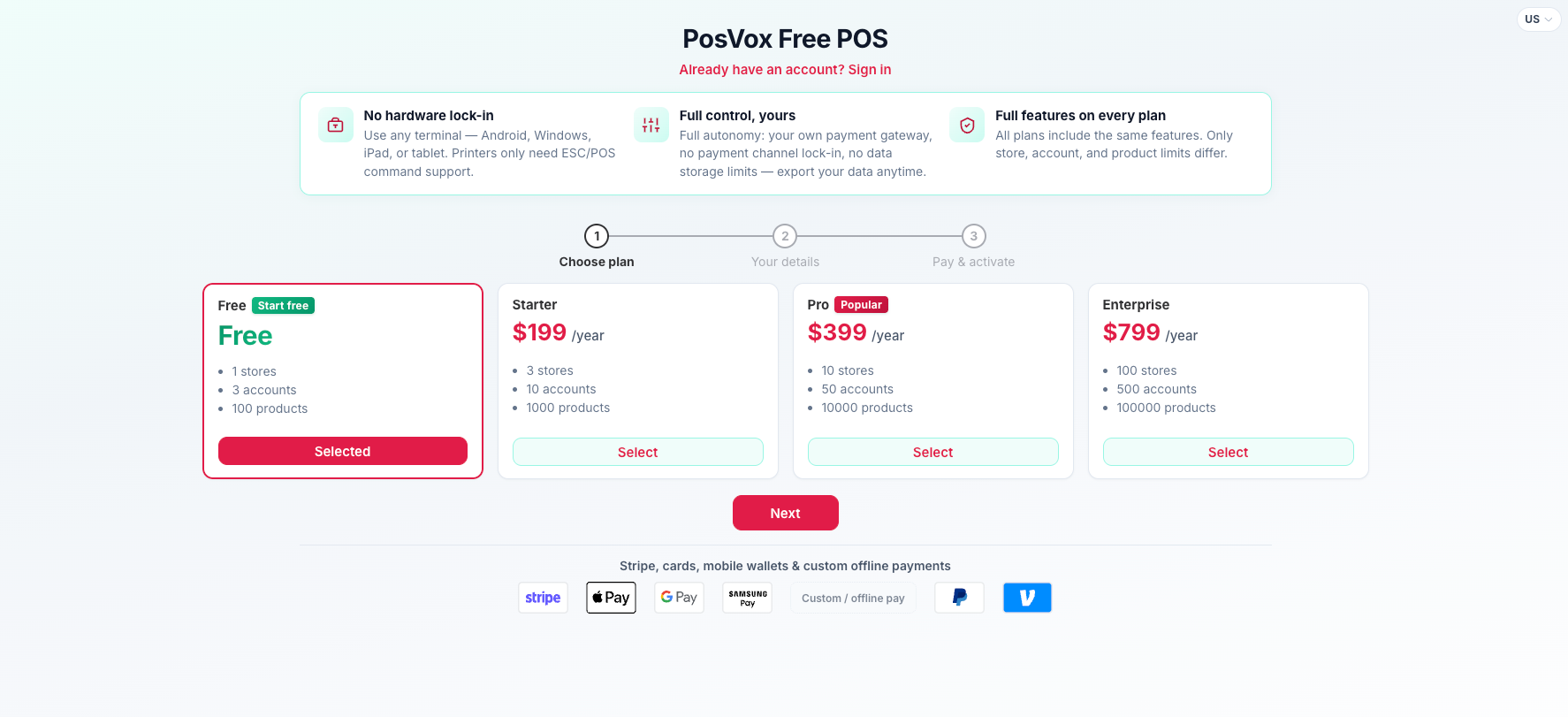
Step 1: Subscribe a Free plan #
visit: https://goadmin.posvox.com/admin/#/subscribe
1. Select free plan
2.Click next, and enter your email, and send code to verify your email address[ the email should be real], then enter mobile number, the name of your brand and the initial password.
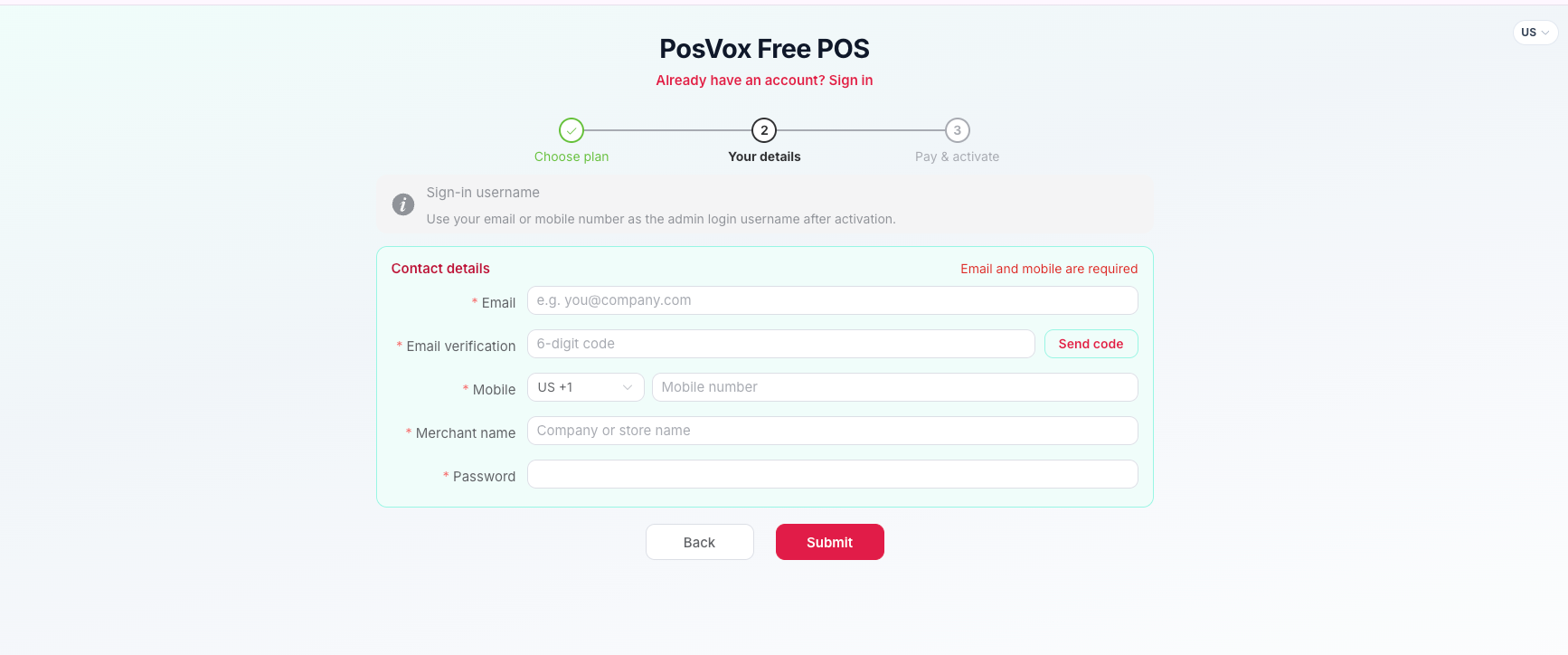
3. Click submit and finish registeration.
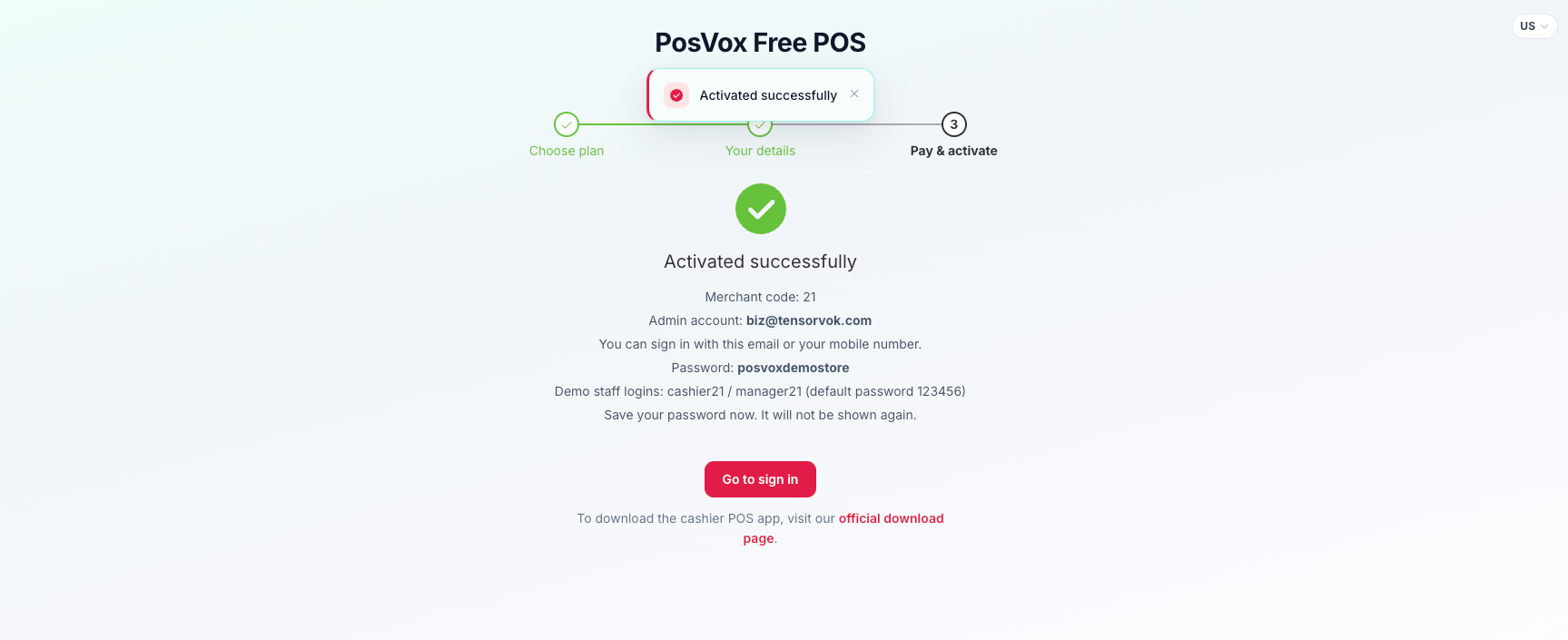
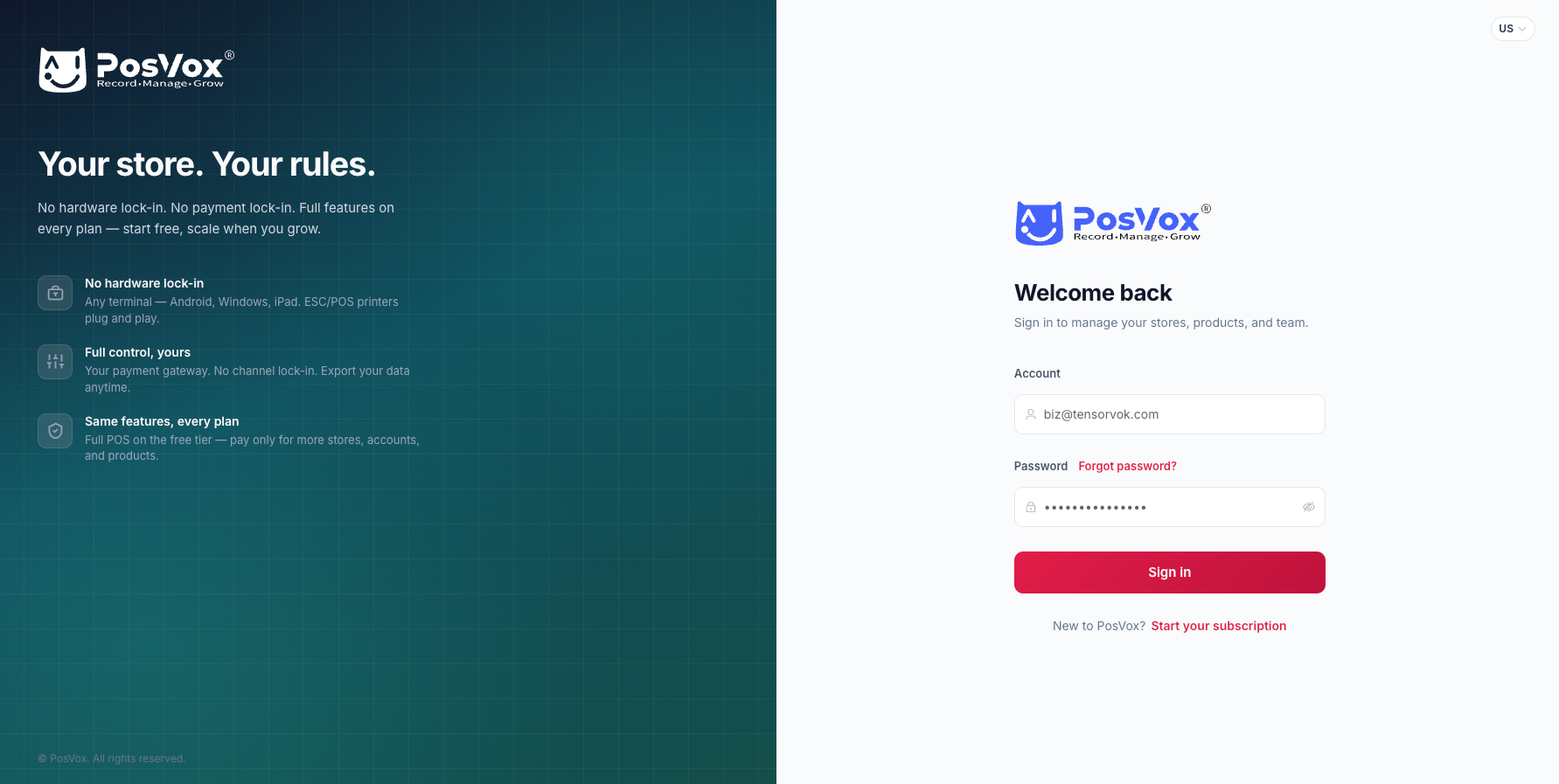
4.Click “Go to sign in” and sign in with email and password
Step 2: Quick onboarding with GUIDE STEPS #
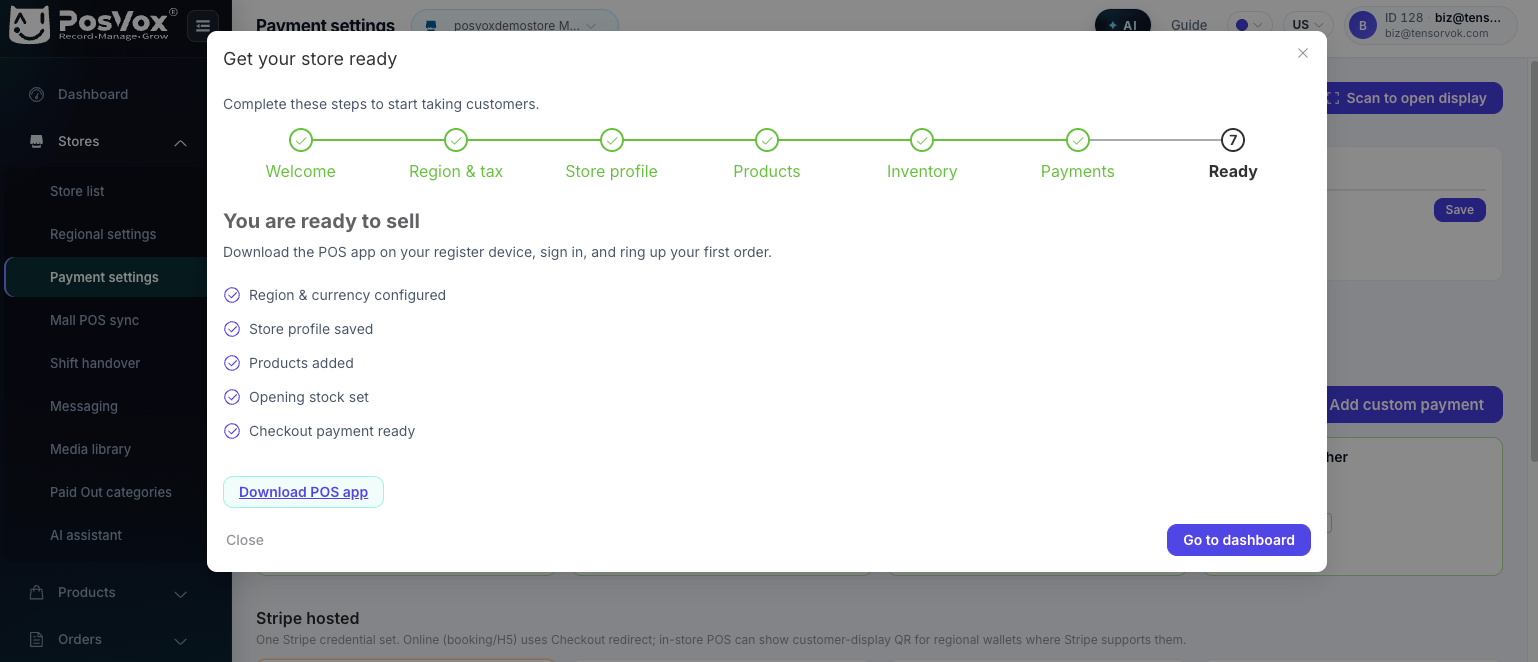
1.When you first login in the POSVOX admin panel, the GUIDE STEPS will automatically popup. If you are new to the system, we suggest you go through with GUIDE STEPS, otherwise, you can skip the step up and finish all the set up as you explore all the features by your own.
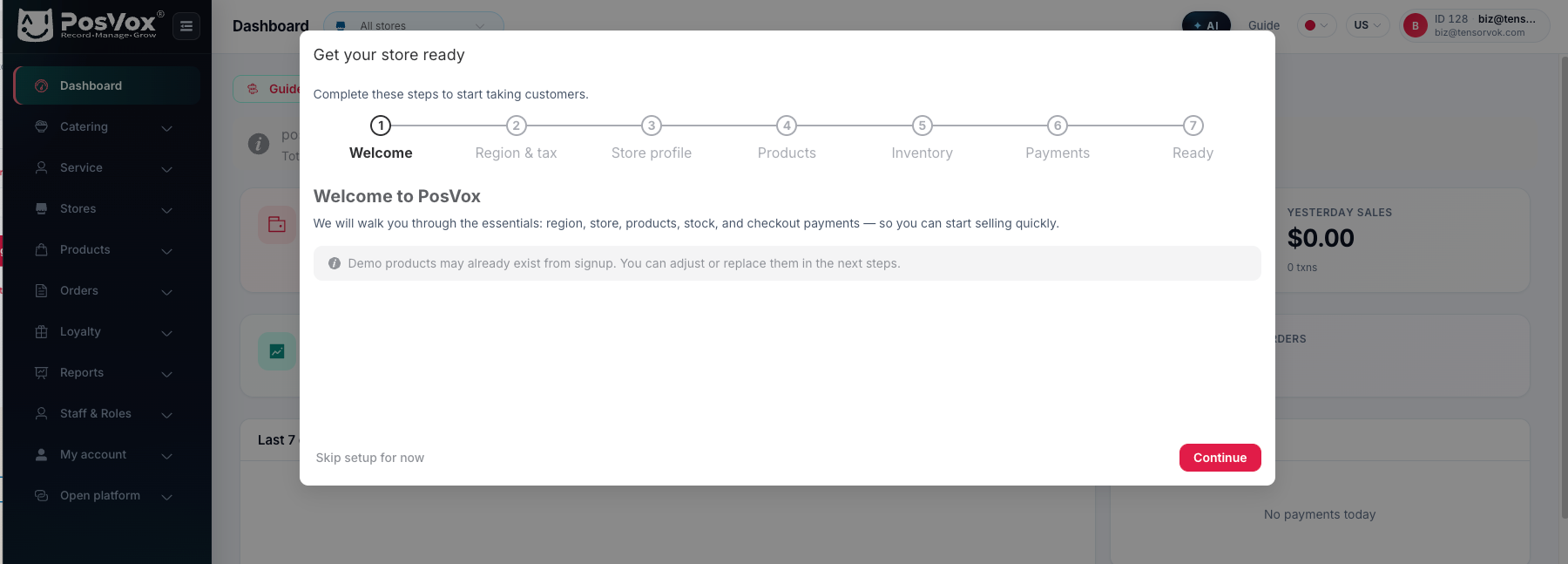
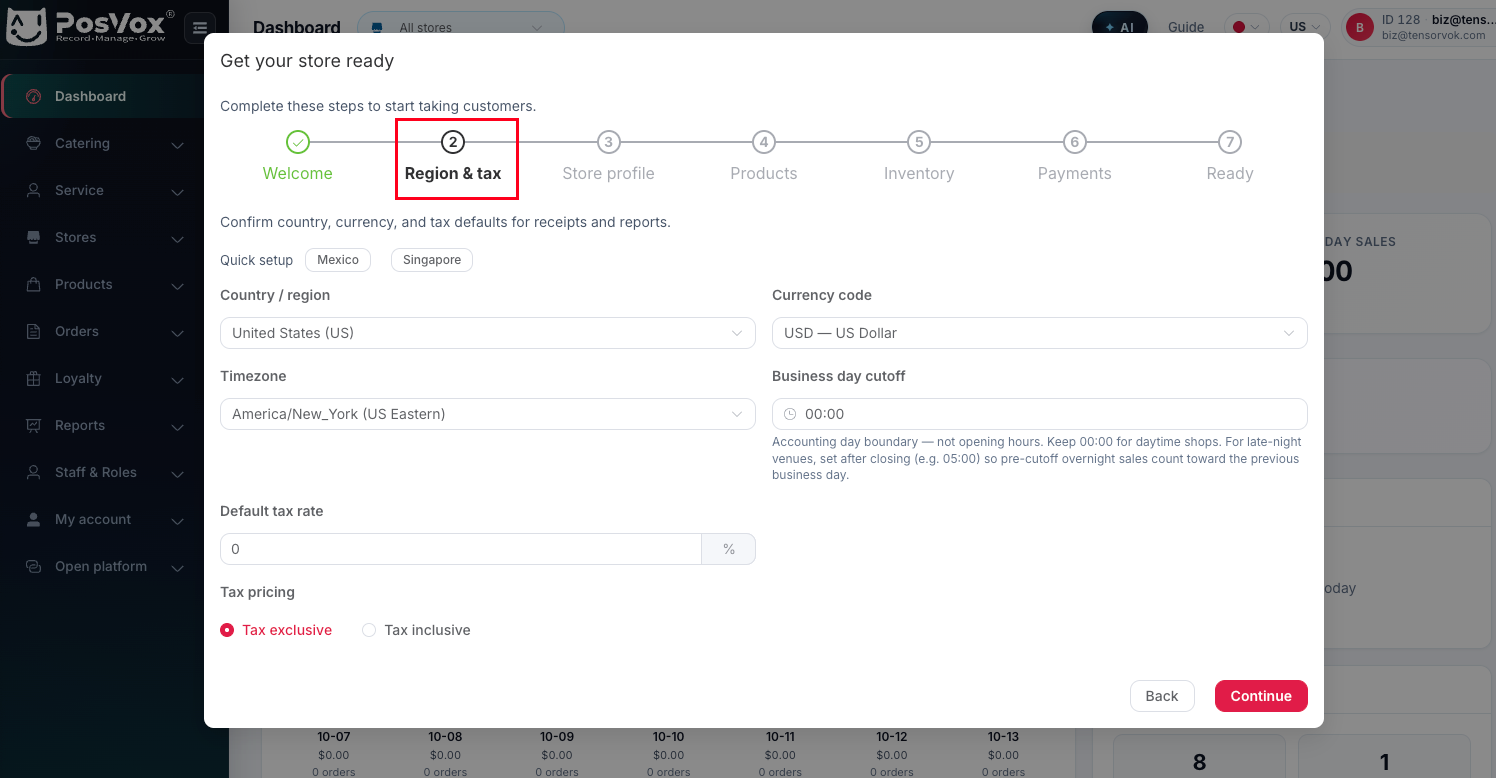
2.Click continue button, and finish the region and tax setup as per your business needs. This include country / region, currency, timezone, business day cutoff, and tax rate.
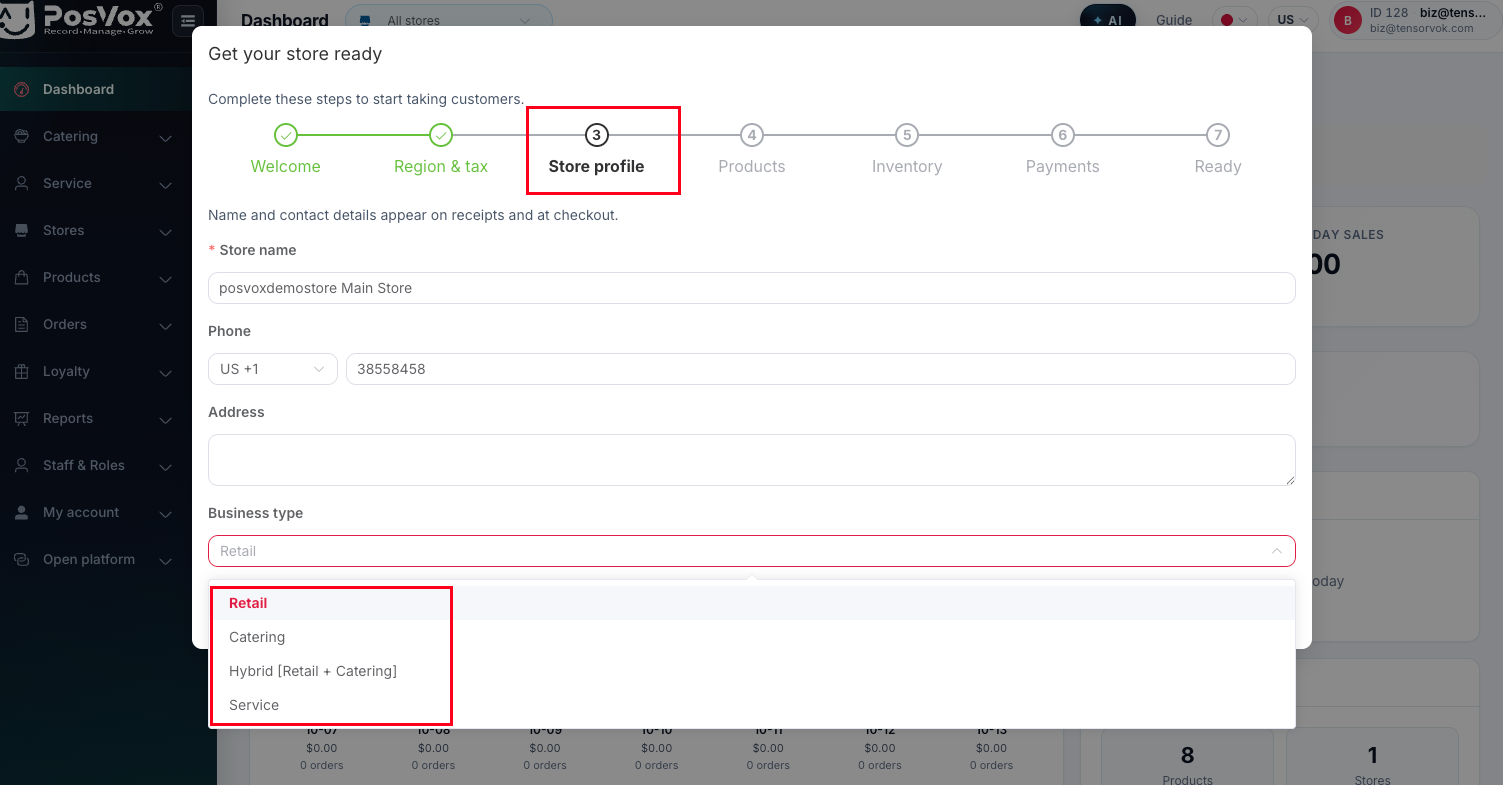
3.Click continue button and fill in the store profile information. These information is very important and some will be printed on the receipt. Choose your business type because posvox support retail, catering, wellness and hybrid mode.
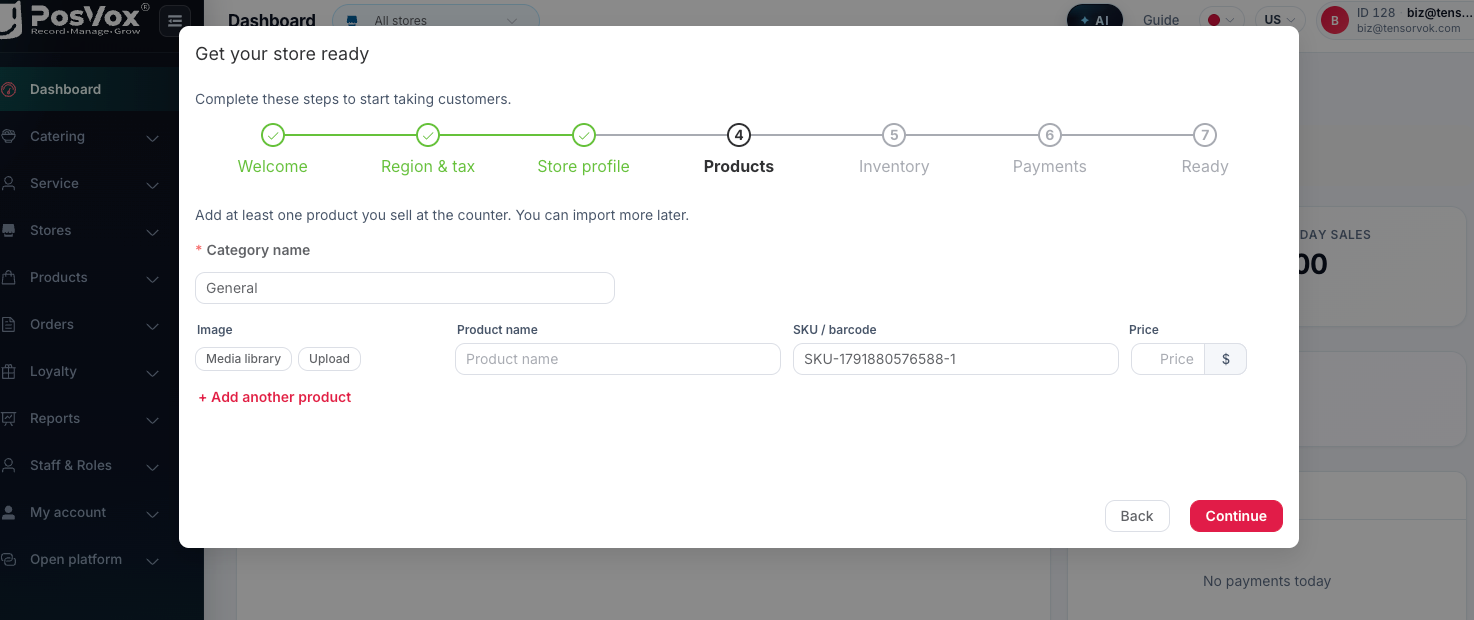
4. Click continue button to add some products. You can quickly add product image, name, sku and price here. Category name is limited here, you can only add one category here.
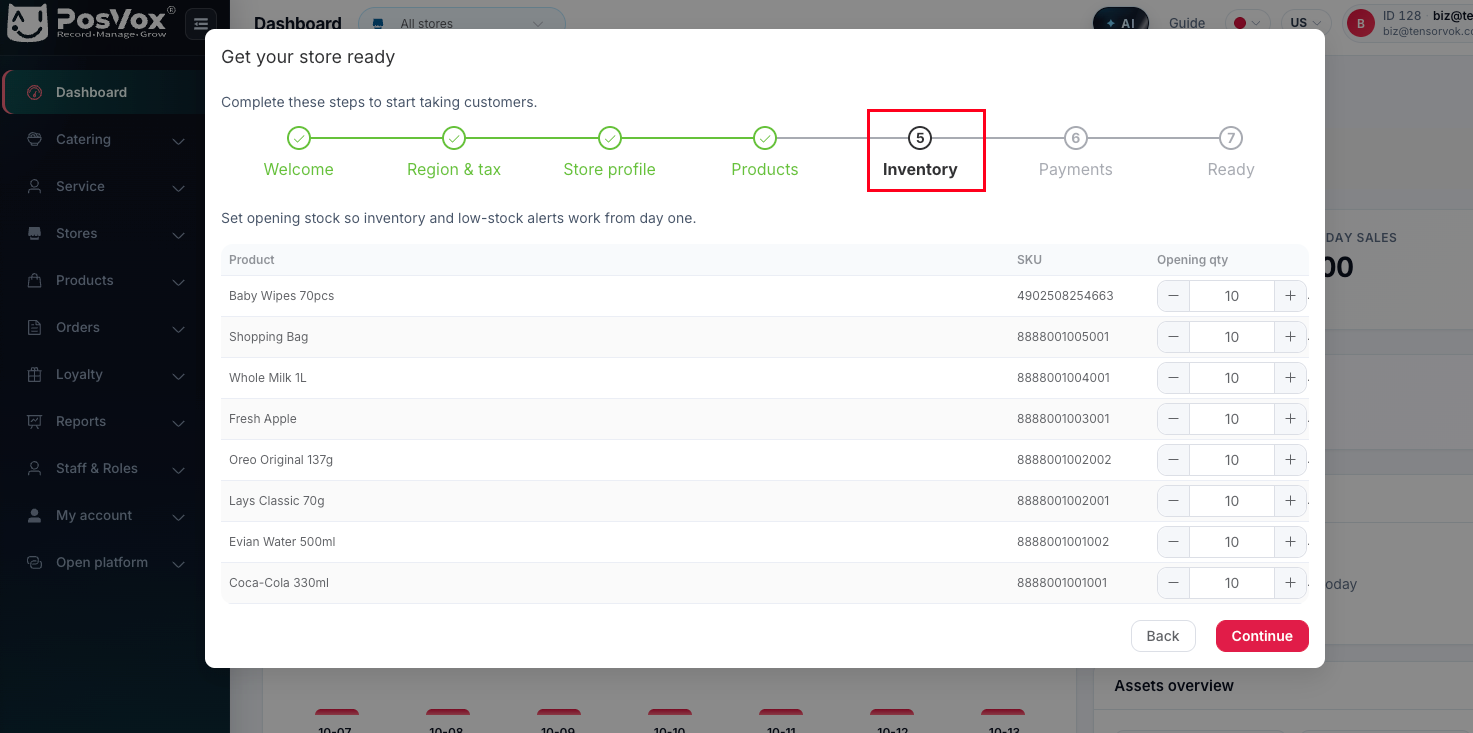
5.Click continue and set the initial inventory of the products you have added.
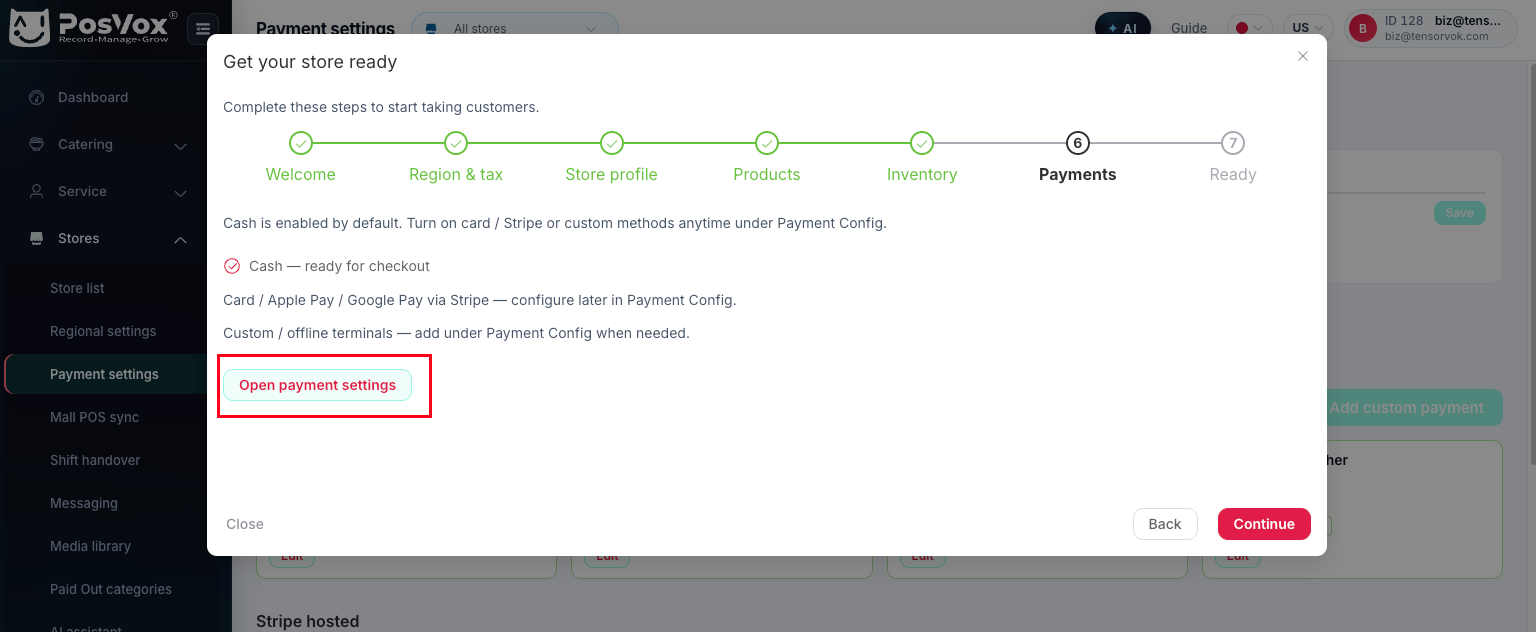
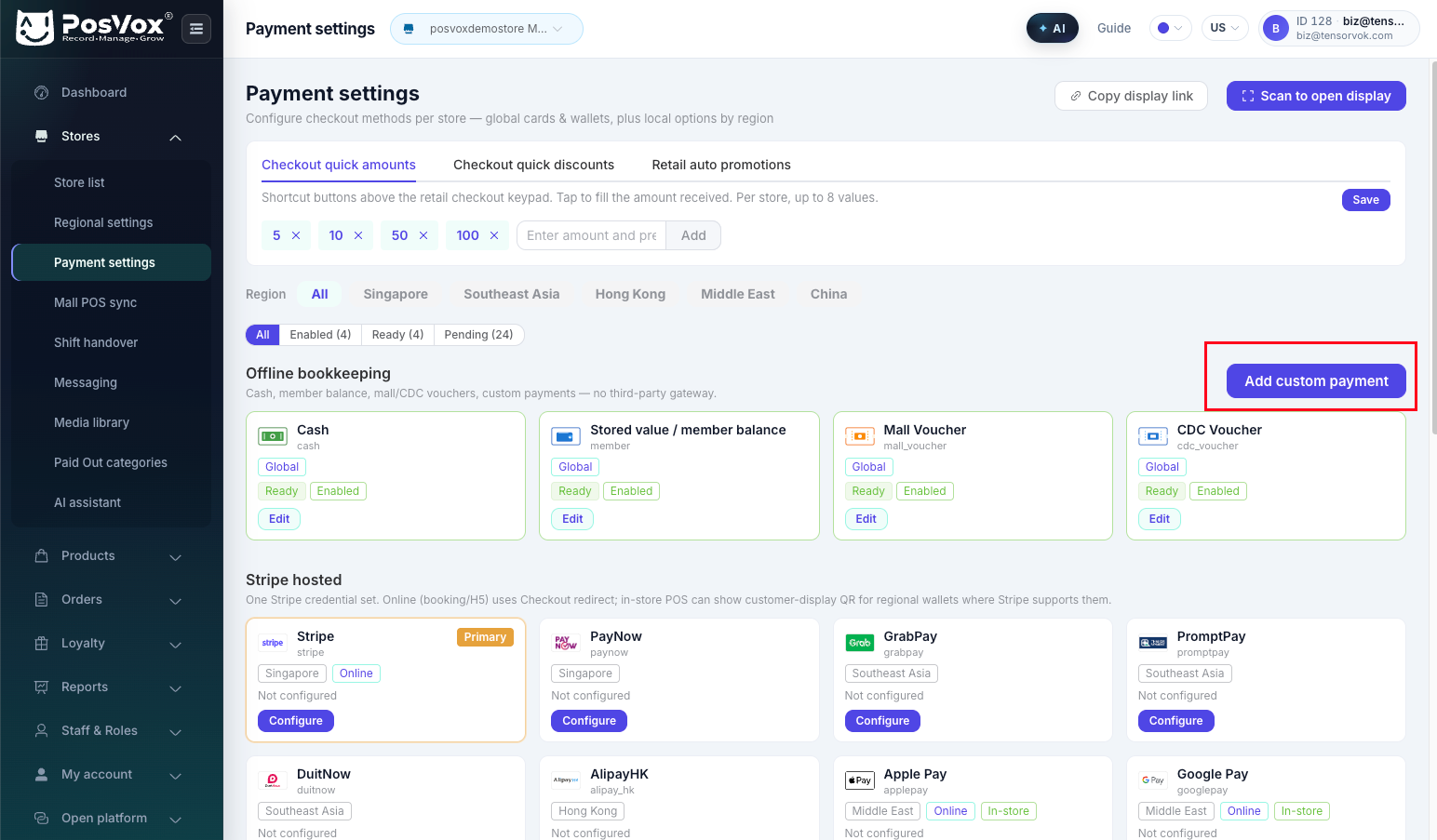
6. Click continue and open payment settings, it will open a new tab and you can add custom payment gateways as you wish
7. After setup the payment, you can click continue to finish the GUIDE STEPS, then you can choose to go to Download page of POSVOX for Retail POS apps and Catering POS apps and more.